
01 / Quick start
Start with a short practice session on the device and audio setup you plan to use. A little preparation makes it much easier to follow the conversation later.
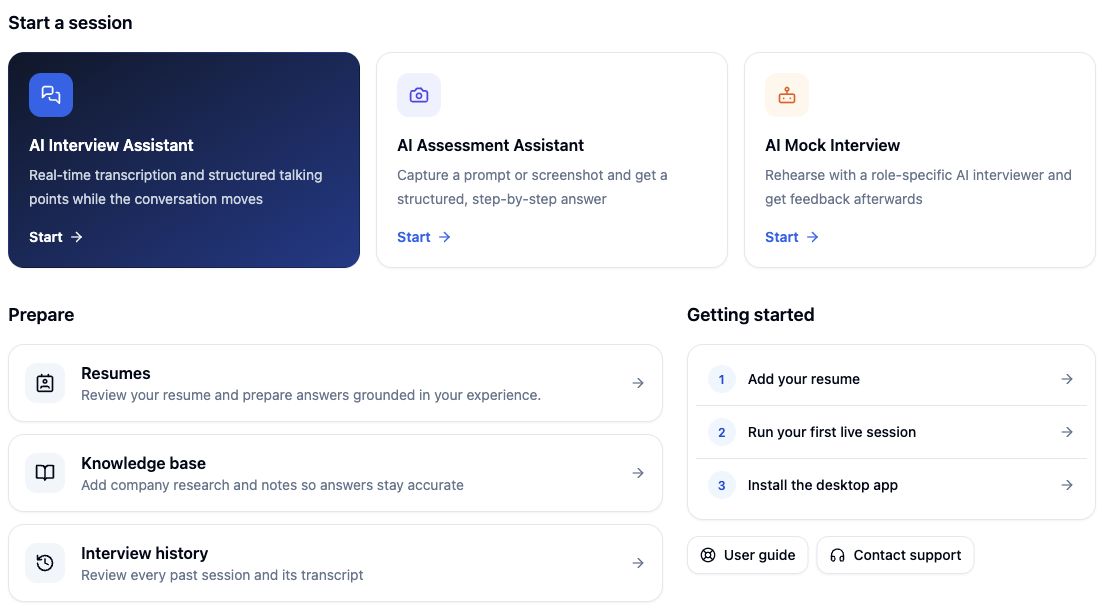
- Sign in at app.cueoffer.com with Google or an email sign-in code. Use the same account in the desktop app.
- Add your context. Prepare a resume, the target role, and the job description. Company research and technical terms are optional additions.
- Choose a session. Use Interview for a live conversation, Assessment for screenshot questions in the desktop app, or Mock interviews to rehearse with an AI interviewer.
- Check your setup. Confirm your available credits, audio source, and any desktop permissions before starting.
- Finish explicitly. End the session in Cueoffer when you are done, then open its record to review it.
02 / Install & sign in
Choose where to use Cueoffer
| Where | Use it for | Before you start |
|---|---|---|
| Windows / macOS app | Interviews, assessment screenshots, global shortcuts, and device sync. | Install the correct build and check microphone, audio, and screen permissions. |
| Desktop browser | Preparing resources, mock interviews, reviewing records, and interviews with browser-supported audio capture. | Check which audio sources your browser can share. Native screenshots require the desktop app. |
| Phone / tablet browser | Viewing a synced session or using a microphone-only interview setup. | Keep the page open. A phone cannot capture another device's audio internally; its microphone must be able to hear it. |
Install the desktop app
Open the download page and choose your operating system. On Mac, choose Apple Silicon or Intel to match the chip shown in About This Mac. Open the downloaded disk image, move Cueoffer to Applications, and launch it from there. On Windows, open the installer and follow its setup steps. The download page also provides the current release and installation instructions.
Sign in to the same account
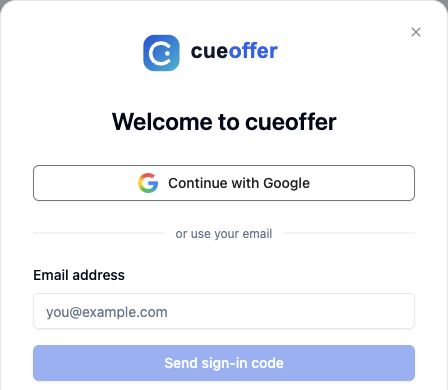
Select Sign in, then Continue with Google, or enter your email and select Send sign-in code. Enter the latest code from your inbox to complete sign-in. In the desktop Google flow, complete sign-in in the browser and return to Cueoffer.
Open Account → Plans & billing to check your plan and credits. Member benefits shows the features and limits available to your account. Review the displayed usage rules before starting; resource limits and enhancements can vary by plan.
03 / Prepare your resources
Add a resume
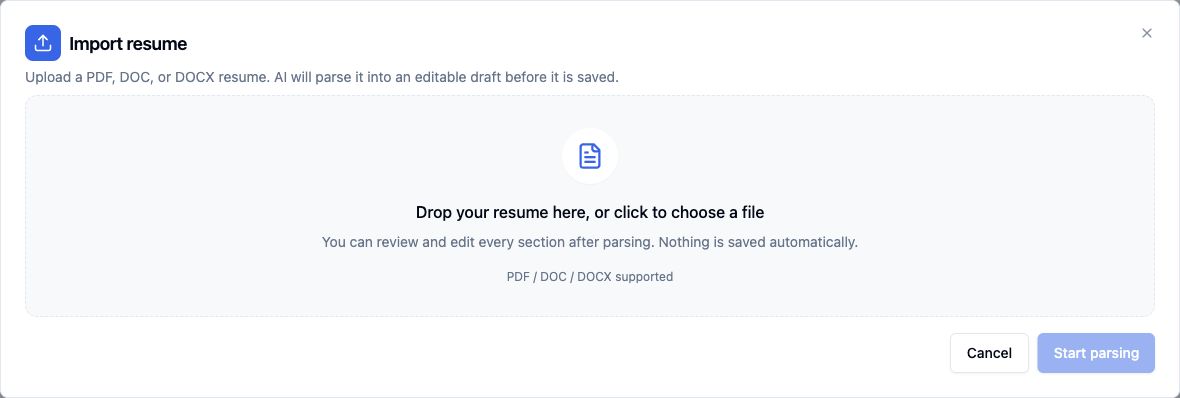
- Open My resources → Resumes and select Import resume.
- Choose a PDF, DOC, or DOCX file, then select Start parsing.
- Review the editable draft, especially your roles, dates, project details, and achievements. Correct any parsing mistakes before saving.
- Alternatively, choose Create manually and enter the information yourself.
Importing produces a draft; it does not save the resume automatically. Use accurate examples of your own work so the assistant has useful context.
Organize a knowledge base
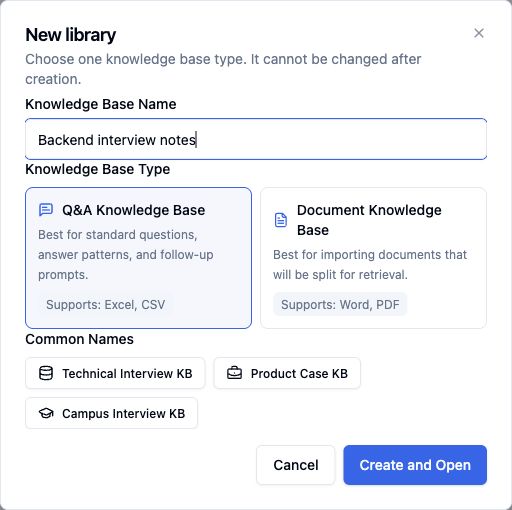
Open My resources → Knowledge base → New library. Give it a recognizable name and choose its type:
- Q&A Knowledge Base: reusable questions and answers, such as project explanations and behavioral examples. The import flow supports Excel and CSV.
- Document Knowledge Base: reference material such as company research and technical notes. The import flow supports Word and PDF.
The type cannot be changed after creation. Open the library to add or import material, and check that processing has completed before using it in an interview.
Add custom vocabulary
Open My resources → Custom vocabulary, create a library, and add company names, product names, acronyms, or technical terms that are often transcribed incorrectly. This helps speech recognition; it is separate from the knowledge base used for answer context.
Saving a resource does not automatically attach it to every interview. Select the resume, knowledge base, and vocabulary library in the interview's Advanced Settings.
04 / Start an interview
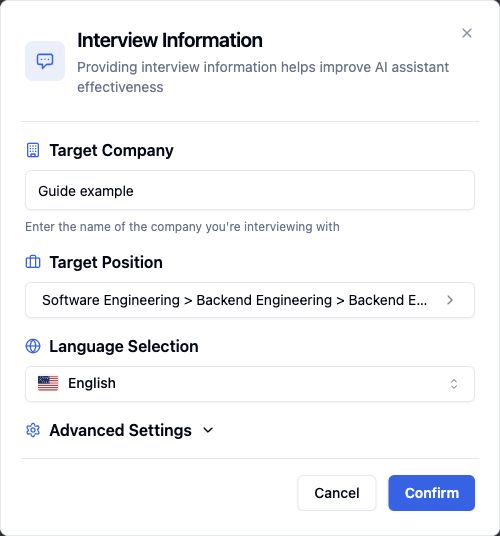
Select Interview in the sidebar or AI Interview Assistant on Home.
- Enter the Target Company.
- Choose your Target Position. Some technical roles also ask for a programming language. Use Add custom role if you need a different title.
- Choose Language Selection to match the interview language.
- Expand Advanced Settings to attach the resources you prepared.
- Select Confirm to open the session's preparation screen. Choose and check your audio before selecting Start Assistance.
Make the guidance relevant
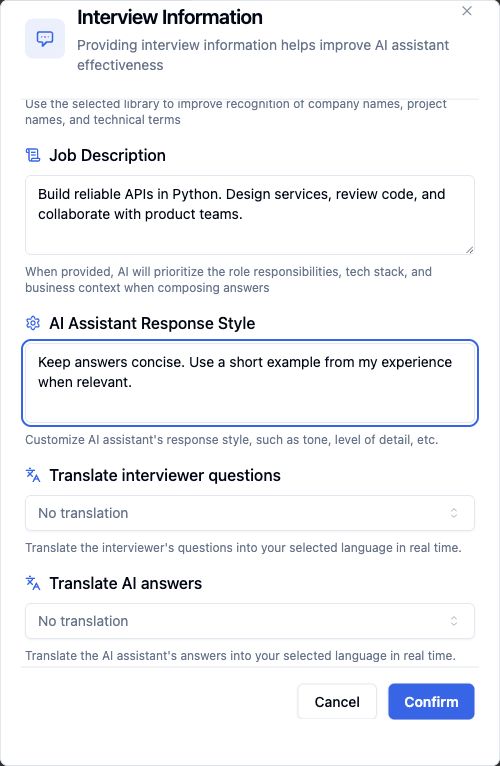
In Advanced Settings, use Resume Selection, Knowledge Base Selection, and Speech Hotword Library to choose your saved resources. Paste the role's responsibilities into Job Description. Use AI Assistant Response Style for a preference such as “Keep answers concise and use a relevant example from my experience.”
Translate interviewer questions and Translate AI answers are separate settings. Leave either on No translation if you do not need it, or choose the language in which you want to read that content.
During the conversation
Follow the transcript and the generated talking points. When a question has been recognized but you want an answer immediately, use Answer now. Pause and resume capture with the recording control when needed. Check generated details against your own experience before using them.
The Enhancements menu contains additional answer tools. Use the availability and usage information shown in the app to decide which to enable. When you are finished, choose End interview; closing a tab or hiding a window is not the same action.
05 / Set up your audio
The correct mode depends on where the interviewer's voice comes from.
Mode 1 — the meeting is on this computer
Choose I am conducting an online interview on this computer (Mode 1). This captures the interviewer's audio from the computer and your voice from the microphone as separate sources.
- Desktop app: use the available system-audio and microphone controls. On Mac, supported app audio is captured automatically; check the signal after joining the meeting. On Windows, choose the output device used by your meeting app.
- Desktop browser: select the meeting tab or a supported screen source in the browser's sharing picker and enable its audio-sharing option. Available sources depend on the browser and operating system. A shared picture without shared audio will not capture the interviewer.
- Headphones: they can work when the computer's audio is captured directly. Confirm that the interviewer-audio meter moves while the other person speaks.
Mode 2 — sound comes from another device
Choose I am conducting an online interview on other devices (Mode 2). This captures one microphone source. Place the microphone where it can hear the other device clearly and keep background noise low.
If the other person's voice is playing only inside headphones, the microphone cannot hear it. Use a speaker or switch to direct computer-audio capture. Because Mode 2 shares one source for both voices, pause recording while speaking if your own answer triggers unwanted assistance.
Run the check before the session
- Review Pre-start Check in the desktop app. Follow the Allow action for the capability you need, then return and select Refresh.
- Open Audio Check. Play a short sound through the meeting's output and speak into your microphone. Check the corresponding meters.
- Confirm the language and audio source, then select Start Assistance.
- If audio stops later, use Reconnect audio or change the input device on the session page, and check the transcript again.
On macOS, microphone and screen/audio recording permissions control different capabilities; region selection can also require Accessibility permission. If macOS asks you to restart Cueoffer after a change, reopen the app before testing again. On Windows, check microphone privacy access and the selected input/output devices.
06 / Assessments & screenshots
Use the desktop app for screenshot assistance. A browser or synced phone can display session content, but native screen capture runs on the desktop client.
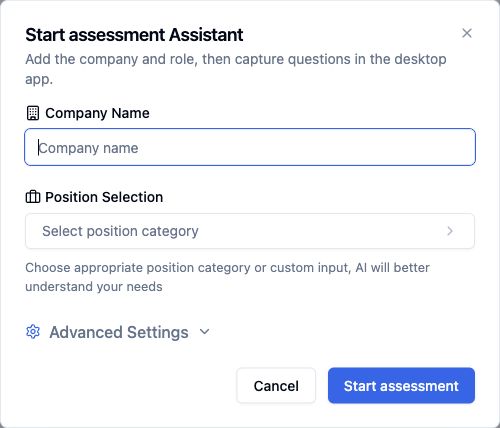
- Select Assessment, enter the company and position, and optionally adjust the answer style under Advanced Settings.
- Select Start assessment and complete the start controls shown on the session page.
- Bring the question you want to capture into view. Use Full screenshot or the configured screenshot shortcut.
- Review the captured question and the resulting answer. Keep all relevant text and diagrams visible and readable.
A question spans several images
Enable Multi-image question, then capture each part in reading order. Wait for uploads to complete and select Finish and ask, or use the multi-image shortcut again. Images are collected first; the combined question is sent when you finish the collection.
Auto screenshot captures at the interval shown in the app. Turn it off when you are done. Auto screenshot and multi-image collection cannot run together. For a single region, use the app's region-selection instructions; on supported desktop setups, triple-click the top-left corner and then the bottom-right corner.
07 / Connect a second device
Device sync lets you follow a desktop session from another screen.
- Open the interview or assessment on your computer and select Device sync.
- Scan its QR code with your phone camera, or open the provided link in a browser on the second device.
- Keep both devices connected and the receiving page open. Send a practice question or screenshot and check that new content appears.
- If the receiving page offers remote screenshot controls, the desktop app must remain running with its capture permissions enabled.
- End the original session when you finish. If an old link stops working, reopen Device sync in the current session and use the current link.
Treat the sync link as private: it gives access to session content. If syncing stops, check both devices' connections, wake the receiving screen, and reconnect from the original session.
08 / Practice & review
Rehearse with an AI interviewer
Open Interview tools → Mock interviews → Start Mock Interview. Search or browse for a role, select it, and start the mock interview. Complete the microphone check, listen to the question, and use the voice-answer control to respond. Finish the interview to review its conversation and available report in Mock Interview Records.
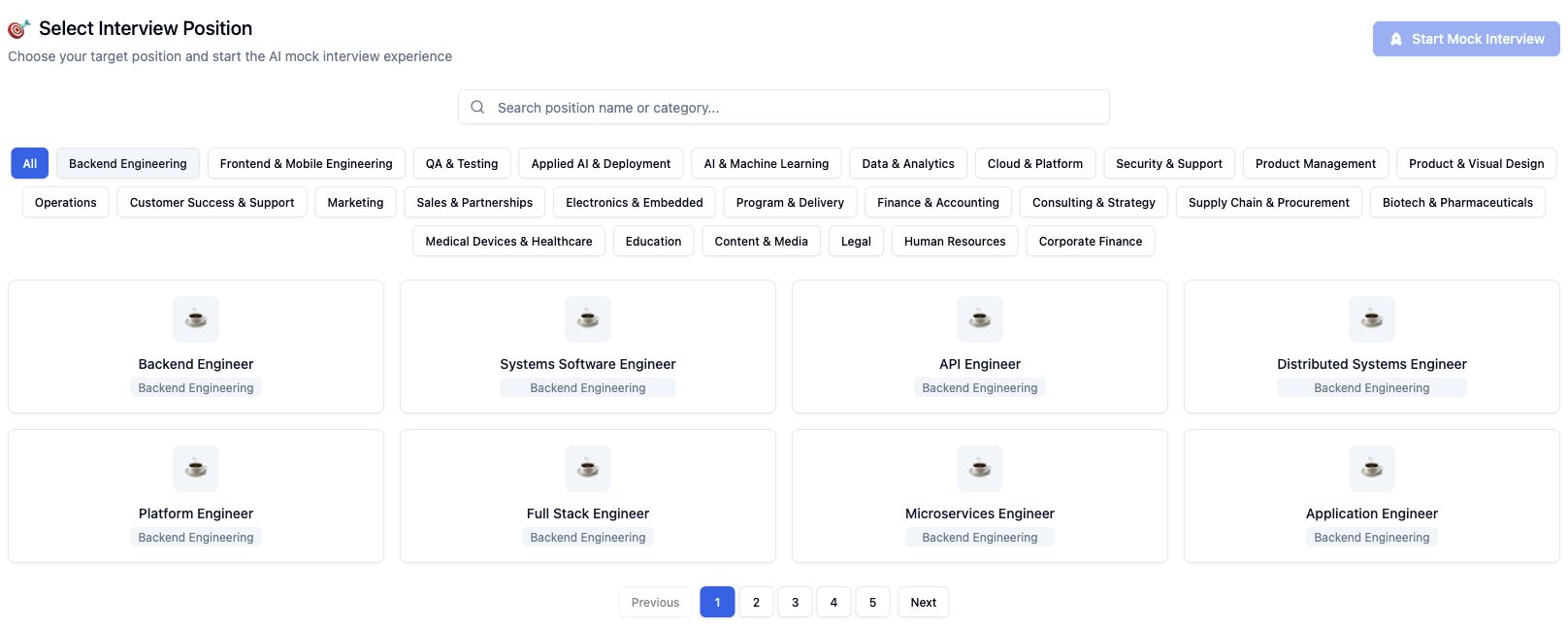
A mock interview helps you rehearse answers. Separately test your live interview's audio source: a working microphone alone does not prove the meeting's audio is being captured.
Review a completed session
Use Interviews or Assessments in the sidebar to reopen a saved session. Review the questions, transcript, and answers that were captured. Use what you learn to improve your resume examples and reference material before the next session.
Before a scheduled conversation, check sign-in, credits, the selected resources, audio signals, and any screenshot or sync features you intend to use. Do a short rehearsal with the same equipment.
09 / Keyboard shortcuts
These are the current default bindings. If you have customized them, use the bindings shown in Feature Settings or the session's shortcut guide. On Mac, Ctrl means the Control key, not Command.
Screenshot and scrolling shortcuts require the desktop app. Auto screenshot is available in assessment sessions; other enhancements depend on feature availability.
| Action | Default shortcut |
|---|---|
| Full screenshot | Ctrl + Q |
| Start / finish a multi-image question | Ctrl + B |
| Toggle auto screenshot | Ctrl + Alt + A |
| Pause / resume recording | Ctrl + 0 |
| Toggle deep thinking | Alt + 7 |
| Scroll up / down | Ctrl + K / Ctrl + J |
If a shortcut is occupied by another app, use the toolbar action or change the binding in Feature Settings. A desktop-only action will not become available just by pressing its shortcut in a browser.
10 / Troubleshooting
The sign-in code has not arrived
Check the email address and spam folder. Wait for the resend control, request a new code, and use the most recent email. Google sign-in is another option. If desktop Google sign-in completed in the browser, return to Cueoffer to check the result.
I can see the meeting, but there is no transcript
Check whether you selected Mode 1 or Mode 2, whether capture has started, and whether it is paused. In browser Mode 1, confirm that you shared audio as well as the screen or tab. Check the selected device and audio meters, then reconnect audio if needed.
Names or technical terms are wrong
Check the interview language. Add the missing terms to Custom vocabulary, then select that library in the next interview's Advanced Settings. Move closer to the microphone and reduce background noise.
A screenshot is blank or captures the wrong content
Confirm that you are in the desktop app, the question is visible, and screen-recording permission is enabled. Reopen Cueoffer if the OS requires it after granting permission. Try the toolbar's full screenshot before troubleshooting a custom shortcut or region selection.
Images appear, but there is no answer
Check whether Multi-image question is still collecting. Wait for pending uploads and select Finish and ask. If the app displays an error, check the message, connection, and available credits before retrying.
My resume or knowledge base is not reflected in the answer
Check that the import finished, that you saved the material, and that you selected the correct resource in the session's Advanced Settings. A library saved in My resources is not automatically selected for every session.
The session will not start, or a feature is unavailable
Open Plans & billing and Member benefits, then check the limit or availability message shown by the app. For screenshot features, also confirm that you are using the desktop client. Use the current installer from the download page if your app is out of date.
Still need help?
Email [email protected] with your operating system, Cueoffer version, browser if relevant, the step that failed, and the error text. A screenshot of the issue helps. Leave out passwords, sign-in codes, and private sync links.